
OnePlay Promo Wallet Withdrawal Guide
The OnePlay Promo Wallet Withdrawal Guide explains how to withdraw an available amount from your Promo Wallet to your selected bank account. Follow four steps to access the wallet, open Promo Wallet, select Promo Withdraw and confirm the withdrawal after checking the details.
How to Withdraw from OnePlay Promo Wallet
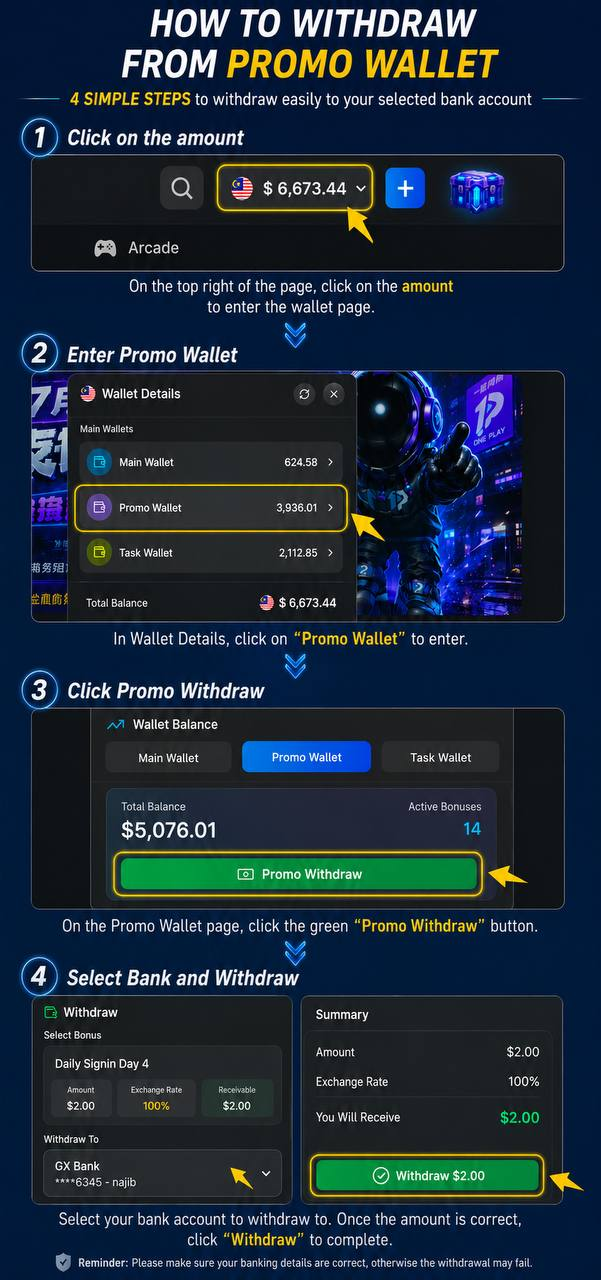
Complete the Withdrawal in Four Steps
Withdrawing from the OnePlay Promo Wallet involves four steps: click the amount shown at the top right of the page, enter Promo Wallet from Wallet Details, select the green Promo Withdraw button, and then choose your bank account and confirm the withdrawal.
Open Your OnePlay Wallet
Step 1 – Click the Amount
Locate the displayed account amount at the top right of the OnePlay page. Click the amount to enter the wallet page and view your Wallet Details.
Enter the Promo Wallet
Step 2 – Select Promo Wallet
In Wallet Details, you can see the available wallet categories, including Main Wallet, Promo Wallet and Task Wallet. Select Promo Wallet to continue with the promotional balance withdrawal process.
Select Promo Withdraw
Step 3 – Click Promo Withdraw
On the Promo Wallet page, review the displayed wallet information and select the green Promo Withdraw button. This opens the withdrawal process for the available promotional amount.
Select Your Bank and Withdraw
Step 4 – Choose Your Bank Account
Select the relevant bonus and choose the bank account you want to withdraw to. Review the withdrawal amount and the information shown in the Summary before proceeding.
Confirm the Withdrawal
Once the amount and selected bank account are correct, click Withdraw to complete the request. Make sure your banking details are accurate, as incorrect details may cause the withdrawal to fail.
Check Your Withdrawal Details
Review the Selected Bonus
Before confirming, check the selected bonus and its displayed amount. The withdrawal screen also shows the applicable exchange rate and receivable amount for the selected withdrawal.
Review the Withdrawal Summary
Use the Summary to verify the Amount, Exchange Rate, and You Will Receive value. Confirm these details together with the selected bank account before clicking Withdraw.
OnePlay Promo Wallet Withdrawal FAQ
How do I access the OnePlay Promo Wallet?
Click the account amount displayed at the top right of the page to open Wallet Details, then select Promo Wallet.
Where is the Promo Withdraw option?
After entering Promo Wallet, the Promo Withdraw button appears on the Promo Wallet page. Select it to begin the withdrawal process.
How do I withdraw from my OnePlay Promo Wallet?
Open the wallet from the amount displayed at the top right, select Promo Wallet, click Promo Withdraw, choose the relevant bonus and bank account, review the Summary, and click Withdraw.
What should I check before confirming a Promo Wallet withdrawal?
Check the selected bonus, withdrawal amount, exchange rate, receivable amount and bank account details before confirming the withdrawal.
Can I select the bank account for my withdrawal?
Yes. The withdrawal screen provides a Withdraw To option where you select the bank account used for the withdrawal.
Why should I check my banking details?
Banking details should be checked carefully before confirmation because incorrect details may cause the withdrawal to fail.
What wallet sections are shown in Wallet Details?
The supplied OnePlay withdrawal interface shows Main Wallet, Promo Wallet and Task Wallet under Wallet Details. For this process, select Promo Wallet.
Withdraw from Your OnePlay Promo Wallet
Access your Promo Wallet, select Promo Withdraw, choose your bank account and review the withdrawal details before confirming your request.