
OnePlay Download – App Installation Guide
Use this OnePlay Download guide to access OnePlay across Android, iOS and Desktop devices. Android users can access the official 1Play site through the Install App option or add the website to their home screen. iPhone and iPad users can add the website through Safari while the OnePlay 1Play iOS App is coming soon. Windows and macOS users can create a convenient desktop shortcut to the web platform.
OnePlay Download for Android
Android users have two ways to set up convenient OnePlay access. You can follow the Install App option available through the official 1Play platform or add the OnePlay website directly to your Android home screen through Chrome.
Method 1: Install the OnePlay Android App
Use the download button on this page to continue to the official OnePlay 1Play platform. From there, open the Install App section and select Android to begin the installation process.
Step 1: Go to the OnePlay 1Play Official Platform
Select the relevant download or installation button on this page to continue to the OnePlay 1Play official platform.
Step 2: Select Install App
Find and select Install App from the platform menu. This opens the installation instructions available for supported mobile devices.
Step 3: Choose Android
Select the Android tab under How To Install to view the Android installation option.
Step 4: Select Install
Select the Install button beside Install 1PLAY APP. When the installation confirmation window appears, select Install again to continue.
Method 2: Add OnePlay to the Android Home Screen
Android users can also create home-screen access to the OnePlay website through Chrome without relying on a separate app installation.
Step 1: Open Chrome
Open the Chrome browser on your Android device.
Step 2: Visit OnePlay
Enter https://oneplay.games/ in Chrome and open the website.
Step 3: Open the Chrome Menu
Tap the three-dot menu in the top-right corner of Chrome to view the available browser options.
Step 4: Select Add to Home Screen
Choose Add to Home screen from the menu. Depending on your Chrome version and the website configuration, you may see Install app instead.
Step 5: Name and Add the Shortcut
Enter a name such as OnePlay 1Play, confirm the action, and the website icon will appear on your Android home screen for easier access.
If Chrome Shows Install App Instead
Chrome may sometimes display Install app instead of Add to Home screen. If you specifically need a website shortcut, you can refresh the page and check the browser menu again. The available option may vary depending on Chrome and the current website configuration.
OnePlay Download for iOS
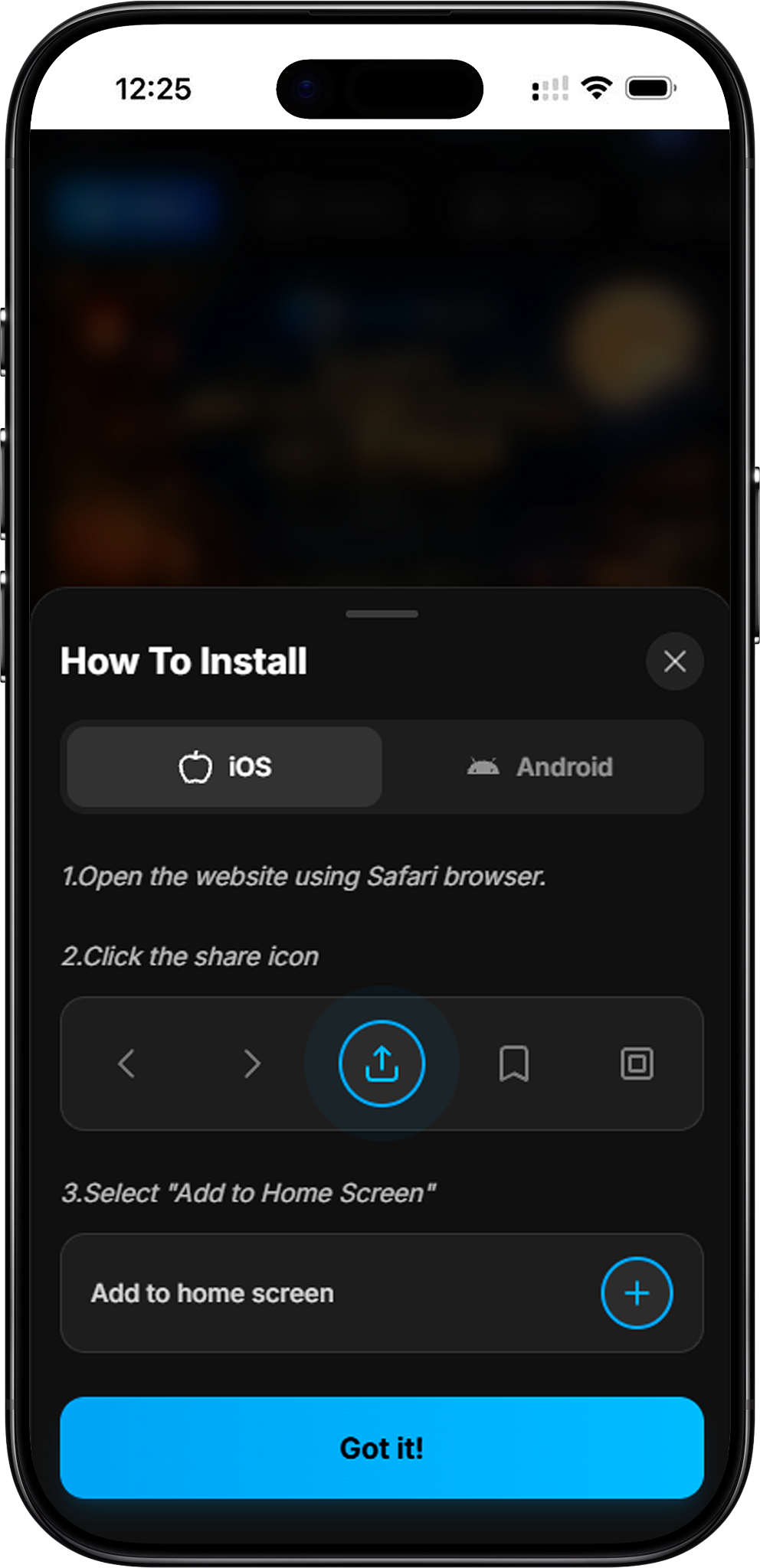
The dedicated OnePlay 1Play iOS App is currently coming soon. In the meantime, iPhone and iPad users can add the OnePlay website to their Home Screen through Safari for convenient browser-based access.
Add OnePlay to iPhone or iPad Home Screen
Safari provides an Add to Home Screen option that creates a OnePlay website icon on your iPhone or iPad.
Step 1: Open Safari
Open Safari on your iPhone or iPad. Use Safari for the Add to Home Screen process.
Step 2: Visit OnePlay
Go to https://oneplay.games/ using Safari.
Step 3: Tap the Share Button
Tap the Share icon, represented by a square with an upward arrow.
Step 4: Select Add to Home Screen
Find and select Add to Home Screen from the Safari sharing options.
Step 5: Customize the Name and Add
Enter a name such as OnePlay 1Play and tap Add. The website icon will then appear on your iPhone or iPad Home Screen.
OnePlay Download for Windows
Windows users can access OnePlay from a Desktop shortcut instead of navigating to the website manually each time. Several browser-based methods are available, including drag and drop, Chrome shortcuts and the Microsoft Edge site-app option.
Method 1: Drag OnePlay to Your Desktop
Step 1: Open the Website
Open the OnePlay website in Chrome, Microsoft Edge or Firefox.
Step 2: Drag the Address Bar Icon
Drag the website icon from the browser address bar onto your Windows desktop.
Step 3: Open the Shortcut
A website shortcut will be created on the desktop. Double-click it whenever you want to open OnePlay in your default browser.
Method 2: Create a OnePlay Chrome Shortcut
Step 1: Open OnePlay in Chrome
Launch Chrome and open the OnePlay website.
Step 2: Open the Chrome Menu
Select the three-dot menu and locate Chrome’s shortcut creation option. Its location or wording may vary by Chrome version.
Step 3: Create the Shortcut
Name the shortcut OnePlay 1Play and confirm. If Chrome provides an Open as window option, you may select it before creating the shortcut.
Method 3: Install the Website through Microsoft Edge
Step 1: Open OnePlay in Edge
Launch Microsoft Edge and visit the OnePlay website.
Step 2: Open Apps
Open the Edge menu and select Apps.
Step 3: Install the Site as an App
Choose Install this site as an app and follow the browser instructions. The website can then be accessed through the installed site experience and supported Windows shortcuts.
Method 4: Create a Manual Windows Shortcut
Step 1: Create a New Shortcut
Right-click an empty area of your desktop and select New, followed by Shortcut.
Step 2: Enter the OnePlay URL
Paste https://oneplay.games/ into the location field and continue.
Step 3: Name the Shortcut
Enter a name such as OnePlay 1Play and select Finish to create the desktop shortcut.
OnePlay Download for macOS
macOS users can create direct Desktop access to OnePlay through Safari or Chrome. These methods create a shortcut to the web platform rather than a separate macOS application.
Method 1: Create a Safari Web Shortcut
Step 1: Open OnePlay in Safari
Launch Safari and visit the OnePlay website.
Step 2: Drag the Website to the Desktop
Drag the website address or available address-bar icon from Safari onto your desktop.
Step 3: Use the Webloc Shortcut
macOS creates a .webloc shortcut. Double-click the shortcut whenever you want to open the OnePlay website.
Method 2: Create a Chrome Shortcut
Step 1: Open OnePlay in Chrome
Launch Chrome on your Mac and open the OnePlay website.
Step 2: Find Create Shortcut
Open Chrome’s menu and locate its shortcut creation option. The exact menu location may differ between Chrome versions.
Step 3: Name and Create the Shortcut
Name the shortcut OnePlay 1Play and confirm the action to create convenient access from your Mac.
Optional: Customize the Shortcut Icon
If you create a macOS shortcut and want to change its appearance, open Get Info for the shortcut and use a compatible image as its custom icon. This step is optional and does not affect website access.
OnePlay App and Web Access Options
The appropriate OnePlay access method depends on your device. Android provides an Install App option as well as home-screen website access, while iOS users can currently add the website to their Home Screen as the dedicated iOS App is coming soon. Windows and macOS users can create shortcuts for direct browser access.
Android
Android users can use the official platform’s Install App option or create a Chrome home-screen shortcut.
iPhone and iPad
The OnePlay 1Play iOS App is coming soon. Until then, Safari’s Add to Home Screen feature provides convenient access to the website.
Windows and macOS
Desktop users can create browser or website shortcuts so OnePlay can be opened directly without manually entering the web address each time.
OnePlay Download FAQ
How do I download OnePlay on Android?
Follow the download link to the official OnePlay 1Play platform, select Install App, choose Android and select Install. Android users can alternatively add the OnePlay website to their home screen through Chrome.
Is there a OnePlay APK?
Android installation should be started through the Install App option provided by the official OnePlay 1Play platform. Follow the installation prompts shown there rather than using an unverified third-party APK source.
Is the OnePlay iOS App available?
The OnePlay 1Play iOS App is currently coming soon. iPhone and iPad users can add the OnePlay website to their Home Screen through Safari in the meantime.
How do I add OnePlay to my Android home screen?
Open OnePlay in Chrome, tap the three-dot menu, choose Add to Home screen, enter your preferred shortcut name and confirm.
How do I add OnePlay to my iPhone Home Screen?
Open the OnePlay website in Safari, tap Share, choose Add to Home Screen, customize the name if needed and tap Add.
Can I use OnePlay on Windows?
Yes. Windows users can access the web platform and create a desktop shortcut through their browser, Microsoft Edge’s site-app option or the Windows manual shortcut method.
Can I use OnePlay on macOS?
Yes. Mac users can access OnePlay through the web and create a shortcut using Safari or Chrome.
Is 1Play related to OnePlay Download?
The provided OnePlay installation interface uses 1PLAY naming for its app installation option. Users following this guide should use the official OnePlay 1Play installation destination provided by the platform.
Access OnePlay on Your Device
Choose the appropriate setup method for Android, iOS, Windows or macOS and follow the device-specific instructions to access OnePlay.